

Ever stared at your iPhone contacts and thought, “Wow, I can’t believe I still have that blurry picture of Uncle Bob from 2005!” Changing contact photos isn’t just about aesthetics; it’s about reclaiming your digital space and making those calls a bit more enjoyable. Imagine scrolling through your contacts and seeing a smiling face instead of a pixelated relic.
Understanding iPhone Contacts
iPhone contacts serve as a digital address book, storing essential information about individuals. Contact photos contribute significantly to the user experience, making it engaging and personal.
Importance of Contact Photos
Contact photos enhance recognition and make interactions lively. Clear, vibrant images create a more inviting atmosphere during calls and messaging. Friends and family look familiar, eliminating confusion over similar names. Having an up-to-date photo can evoke positive emotions, strengthening connections. Engaging visuals also help quickly identify contacts in a crowded display.
Types of Contact Images
Users can select various types of images for their contacts. Photos can include personal snapshots, professional headshots, or even playful avatars. Taking candid shots captures personality, while professional images maintain a formal appearance. Additionally, users can utilize images from social media or choose from existing gallery pictures. Each type of image serves a different purpose, allowing for customization based on the relationship with the contact.
Steps to Change Picture on iPhone Contact
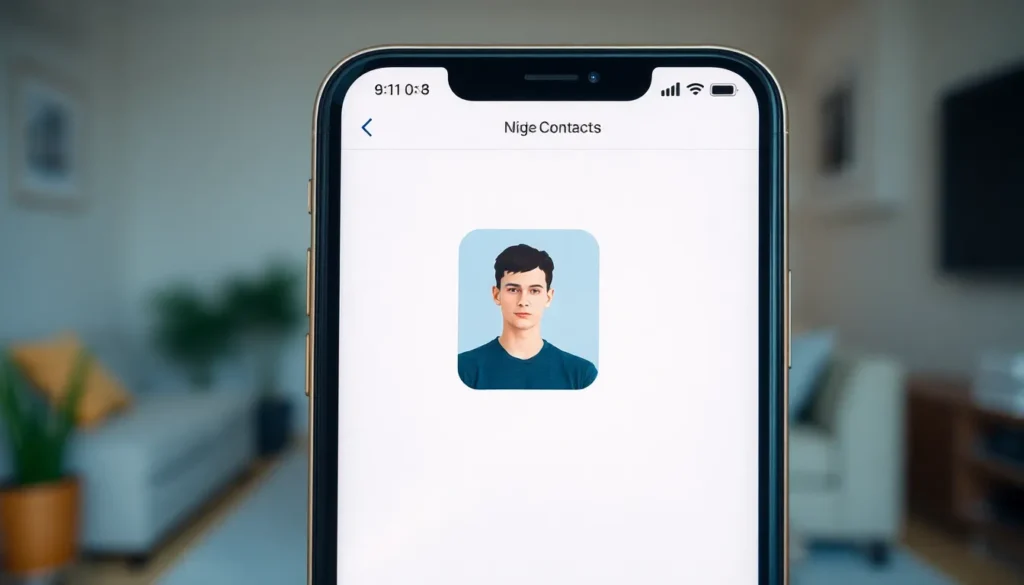
Changing the picture for a contact can enhance the digital experience. Follow these steps to update contact photos effectively.
Using the Contacts App
Open the Contacts app to find the contact whose picture you want to change. Tap on the contact’s name to view their information. Select “Edit” in the upper right corner. Tap the circled photo icon, then choose to take a new photo or select one from your library. After choosing an image, adjust it within the frame. Save changes by tapping “Done” in the upper right corner.
Using the Phone App
Launch the Phone app to access your contacts quickly. Navigate to the “Contacts” tab at the bottom. Find the contact to update and select their name. Press “Edit” at the top right of the screen. For a new photo, tap the profile picture icon. Choose to take a picture, select one from your albums, or explore other photo options. After adjusting, confirm by tapping “Done”.
Using the Photos App
Access the Photos app to select a suitable image for your contact. Locate the photo you want to use and tap on it to view. Click the share icon in the bottom left corner of the screen. From the share menu, select “Use as Contact Photo”. Choose the contact to update and adjust the image as required. Finish by tapping “Choose” and confirm changes for that contact.
Tips for Choosing the Right Picture
Selecting the right picture enhances the contact experience on an iPhone. Clear, high-quality images contribute to a more engaging interaction.
Resolution and Size Considerations
Images should be at least 500 x 500 pixels for clarity. Maintaining a balance between file size and image quality enhances performance. Choosing JPEG or PNG formats ensures compatibility with the iPhone. Avoid large files that can slow down the device. Cropping to a square shape works best since contact images appear in this format.
Creative Ideas for Contact Photos
Consider using personal snapshots that capture memorable moments. Professional headshots work well for business contacts, conveying a polished image. Fun avatars or cartoon representations can add a playful touch for friends or family. Group photos are ideal for joint contacts, allowing easy recognition. Always prioritize images that evoke positive emotions to strengthen connections.
Common Issues and Troubleshooting
Users may encounter common issues while changing contact pictures on an iPhone. Understanding these problems helps in resolving them efficiently.
Picture Not Updating
Users often notice that changes to contact photos don’t reflect immediately. If the issue arises, checking the image in the Photos app can clarify whether the photo saved correctly. Restarting the Contacts app may resolve temporary glitches. Another effective step involves ensuring that all apps are updated to the latest version. Sometimes, device settings can interfere with picture updates, so adjusting iCloud settings might help. For users relying on third-party apps, ensuring full permissions to access the contacts can facilitate updates.
Picture Quality Problems
Picture quality can also be problematic, especially when images appear blurry or pixelated. Choosing images with a minimum resolution of 500 x 500 pixels ensures clarity. Additionally, using high-quality JPEG or PNG formats enhances overall appearance. Some users may unknowingly select images with low resolution, leading to unsatisfactory results. Adjusting the photo or trying different images often remedy quality issues. Experimenting with various images can lead to finding the perfect fit that maintains a vibrant look on the contact profile.
Updating contact photos on an iPhone can significantly enhance the user experience. By choosing clear and engaging images, users can foster stronger connections and make interactions more enjoyable. With the simple steps outlined in the article, anyone can personalize their contact list effortlessly.
Selecting the right image not only adds a personal touch but also makes identifying contacts easier. Whether it’s a cherished memory or a professional headshot, the right photo can evoke positive emotions. By following the tips and troubleshooting advice provided, users can ensure their contact photos reflect their relationships accurately and vibrantly.


